Edit
Edit a render
Mark a part of a render to add, remove or change something. On a render you uploaded, you can also change the whole picture in words. Each press is one edit for 2 credits and adds a new render. The one you started from stays.
Step by step
Open the Edit tab and pick a render
Press Edit in the bar under the picture. Change part is already picked, so you can start at once. Edits work on finished renders, so pick one of your renders first.
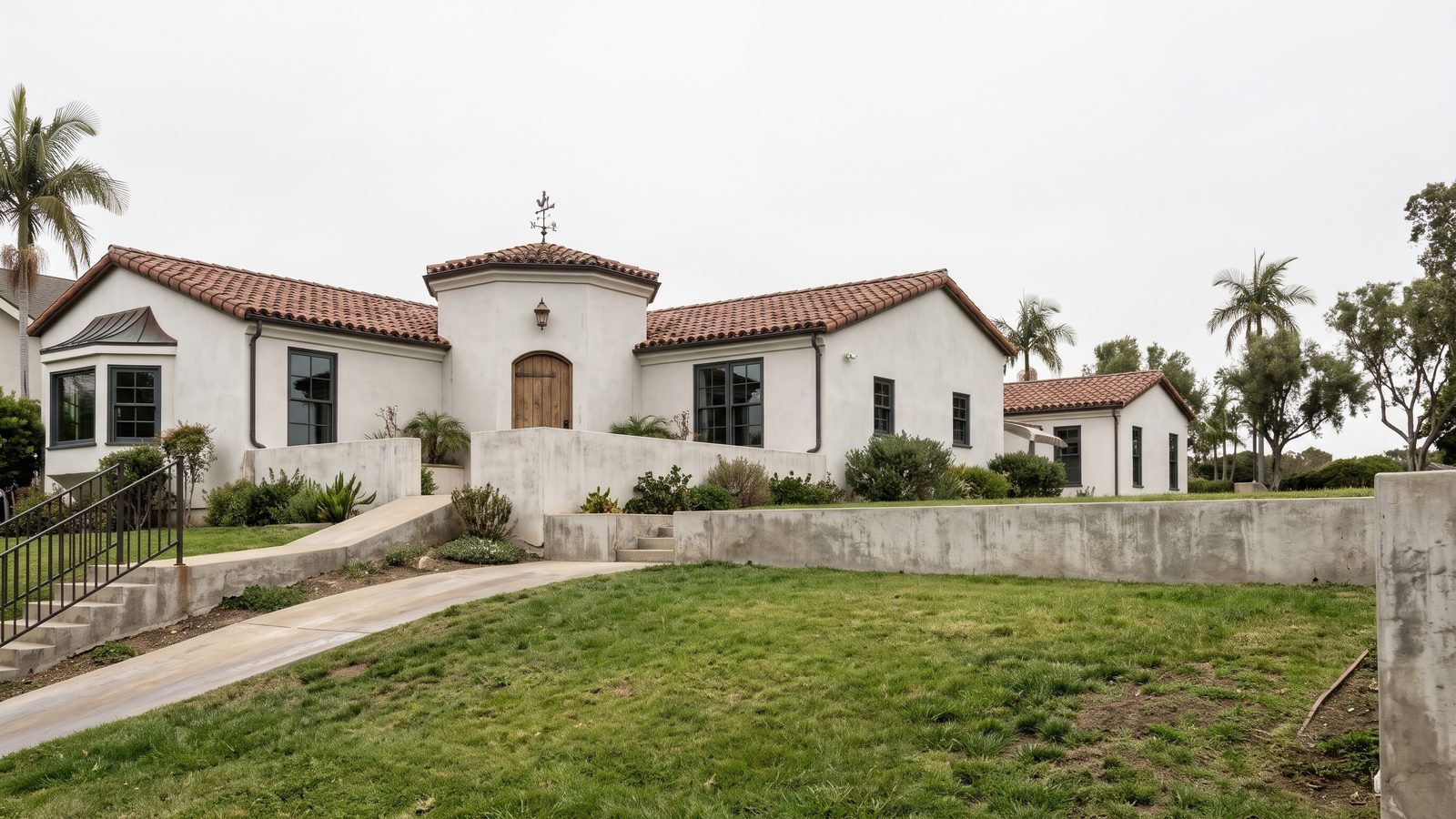
Edits start from a finished render. Mark a part and change it
Under Edit settings, pick Add object, Remove object or Change part. Click or tap around the part on the picture and close the shape on the first point. Type what to add, or what it should become, and press the button beside it (2 credits). Brush, under the picture, paints instead.
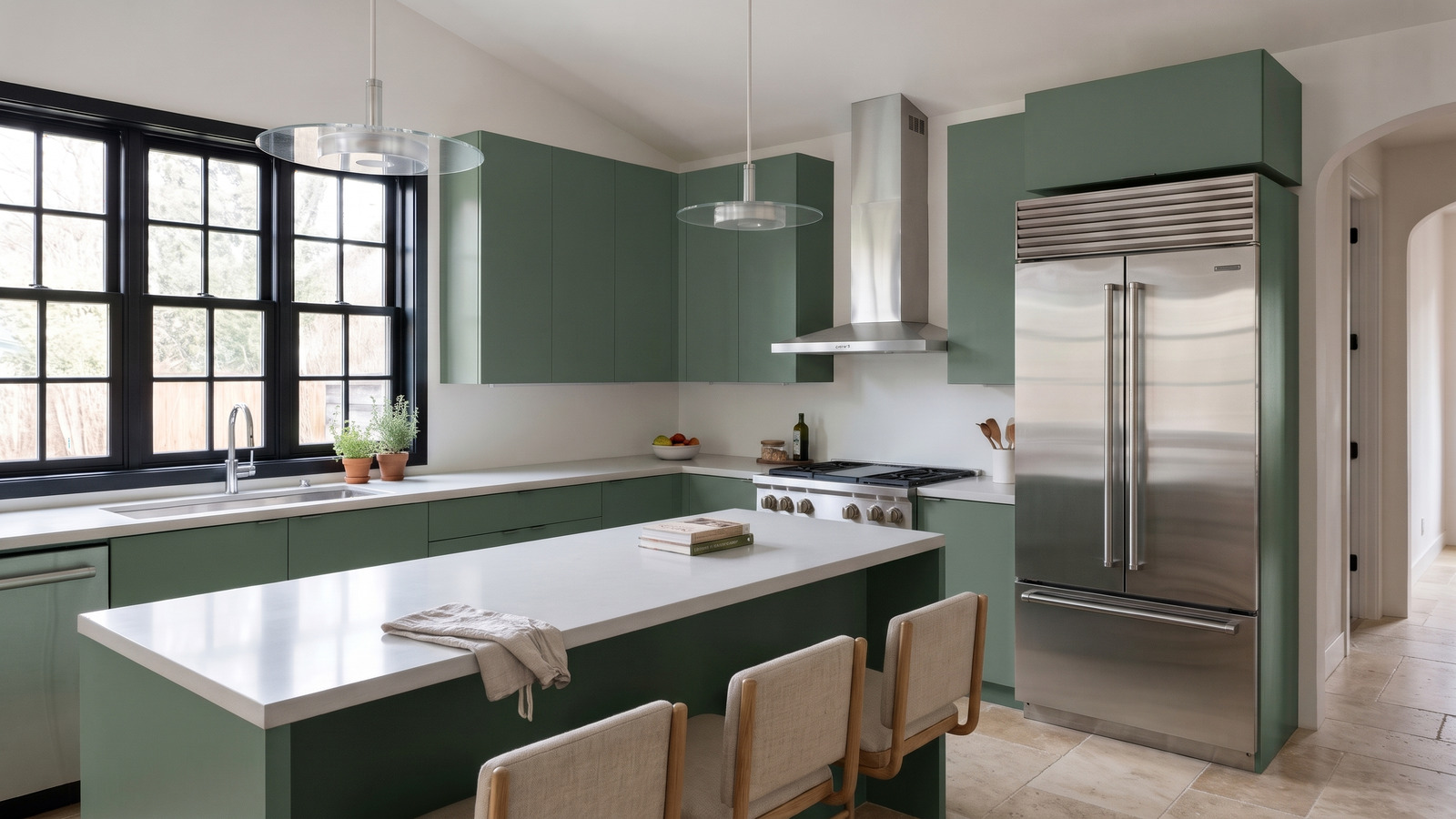 BeforeAfter
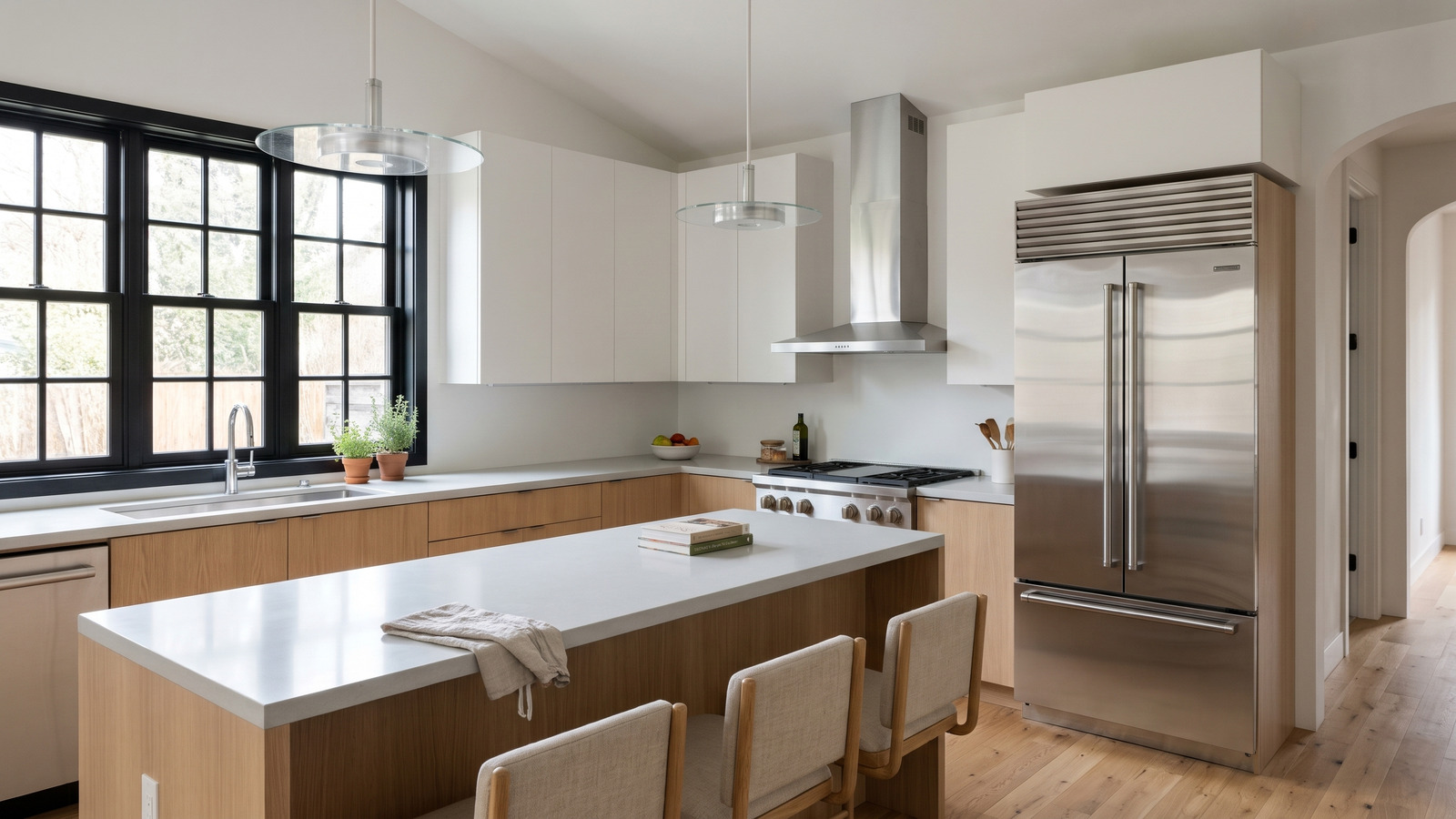
Same kitchen after an edit: sage green cabinets and island, travertine floor. Or change the light
Time of day and Weather are under Render settings. On a 3D view they go with a new render. On a render you uploaded, they change that render. Same view, another time of day.
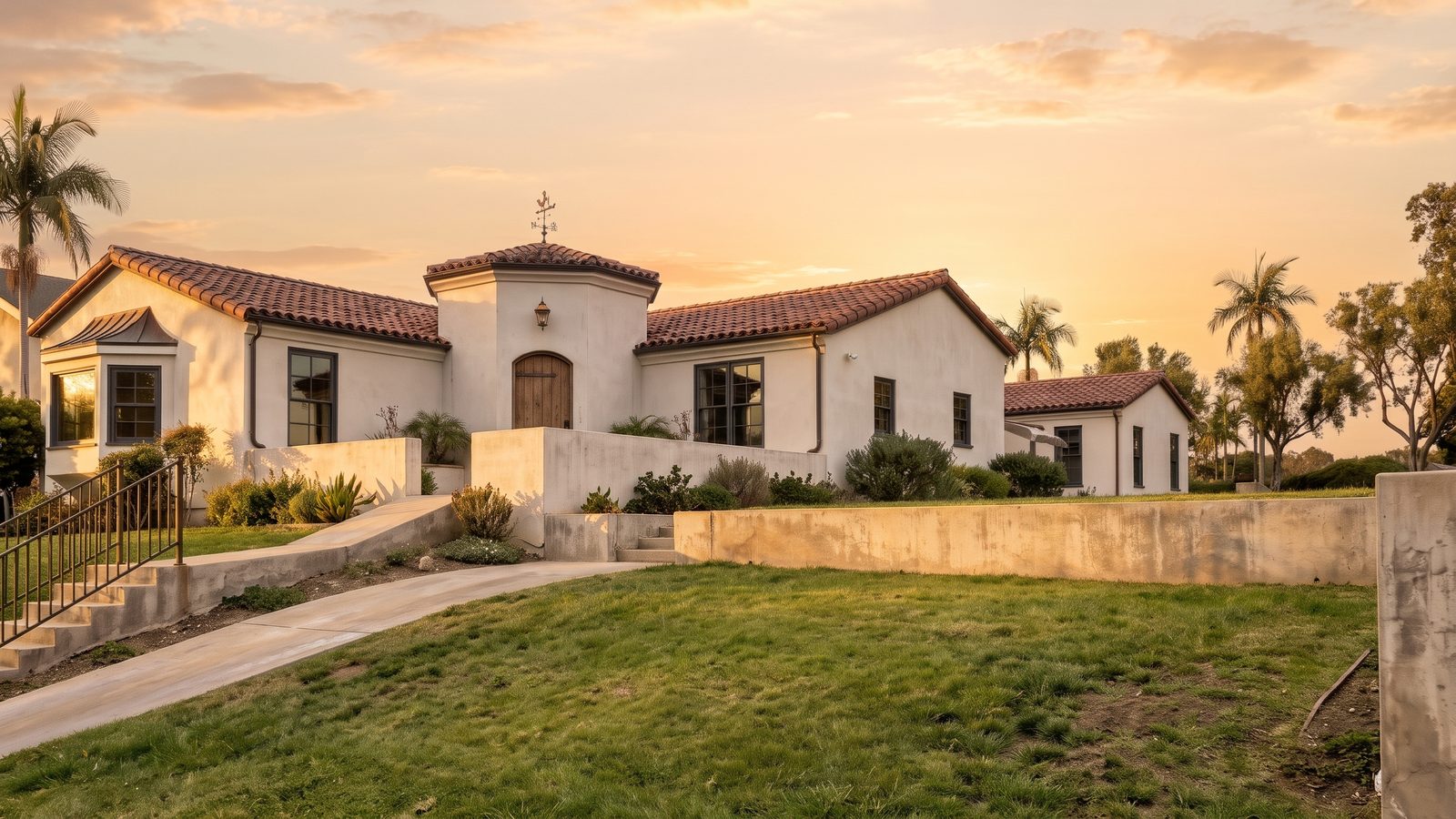
Golden hour 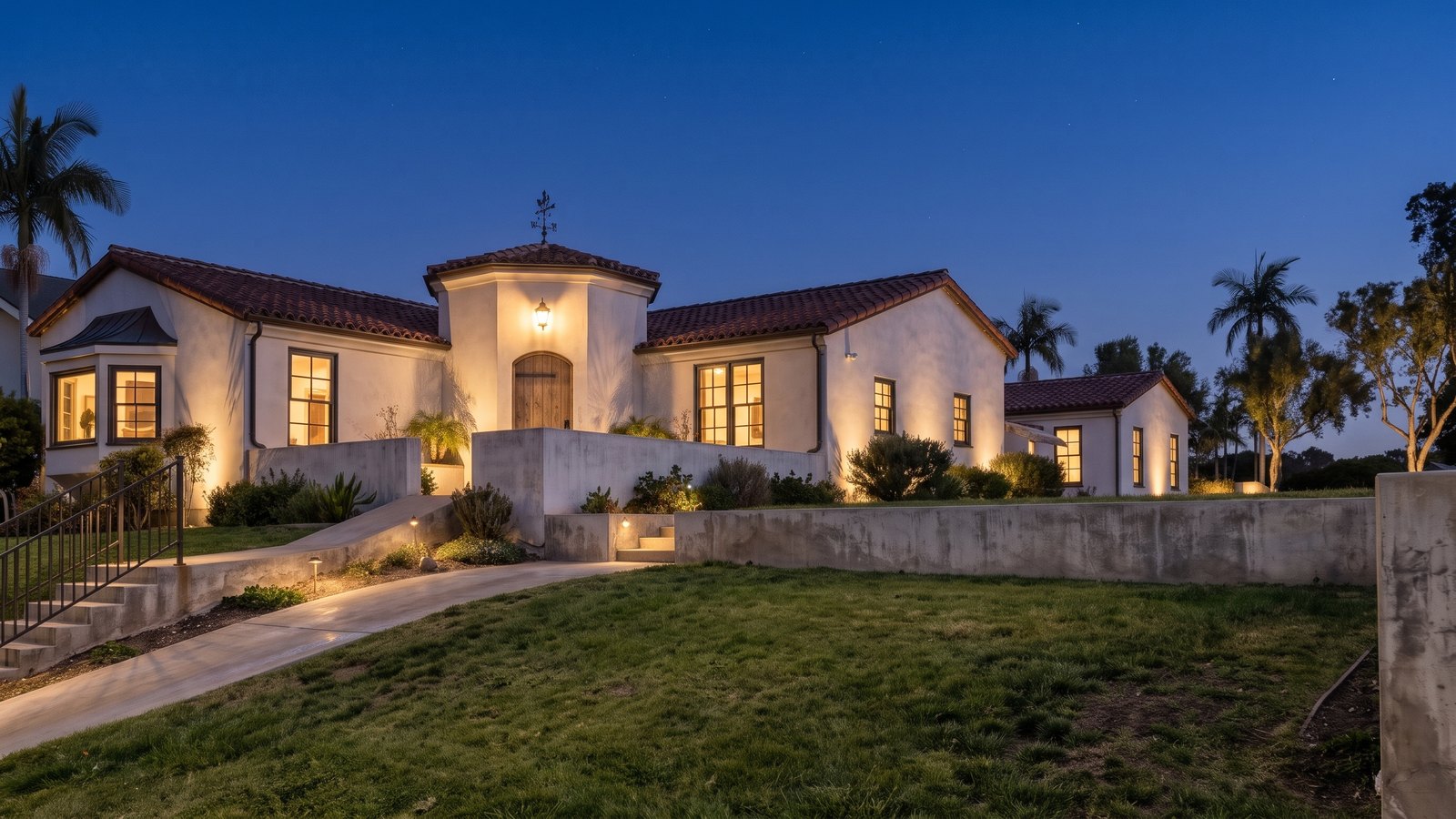
Night Find it in the strip
The edit shows up first in the strip as a new render. The render it came from stays there too.
BeforeAfterThe render and its Night edit. Drag the handle to see both.
Get better edits
- Want to edit an image from somewhere else? On Projects, under Start creating, press Change something, Night and golden hour or Upscale 4K, then upload it. Uploading is free.
- Be specific. “Add a monstera in a clay pot on the right” beats “add a plant”.
- Say how much: “make the sofa slightly darker”.
- The AI engine doesn’t remember your past edits, so don’t reference them in new prompts.
- One press does one edit. The line above the button says what the next press will do.
- Bad edit? Pick the render before it in the strip and edit from there.
- For a bigger, sharper file, use Upscale 4K, under Render settings.